
Tuesday, February 22, 2011


Monday, February 07, 2011
iGone Out Of Office - outofoffice setup for iPhone and IPad
First Down load iGone Apps from App Store.
After download choose Settings from main screen and click on iGone

Go back to main screen and click on iGone

Here you can choose on or off and adjust the date as well

- Posted using BlogPress from my iPad
After download choose Settings from main screen and click on iGone

Go back to main screen and click on iGone

Here you can choose on or off and adjust the date as well

- Posted using BlogPress from my iPad
Saturday, January 29, 2011
How to Setup Google Cloud Print
Printing using your existing Home or Work getting easier.
1. You will need Gmail Account.
2. On your home or work computer download Chrome: http://google.com/cloudprint
3. Cluck here and follow this simple instructions:
http://techinch.com/2011/01/25/setup-google-cloud-print-on-your-pc/
1. You will need Gmail Account.
2. On your home or work computer download Chrome: http://google.com/cloudprint
3. Cluck here and follow this simple instructions:
http://techinch.com/2011/01/25/setup-google-cloud-print-on-your-pc/
Posted using BlogPress from my iPad
Monday, December 27, 2010
CITRIX ON iPHONE and iPAD
1. Download Citrix Receiver from App store.

2. Citrix Apps

3 Choose Setup enterprise App(image on the left)

Here type: https://your remote server name. You ca ask your company, and press Next
4. Go a head feel in all blank space with your email and password and press on Save.
Soon you will see the following screen:

Then the following will display in a minute or less:

Press on outlook icon to read your email:

Citrix in Progress:

Soon you will see your outlook email page:
- Posted using BlogPress from my iPad
Location:South St,Portsmouth,United States
Monday, November 22, 2010

Sunday, September 05, 2010
Sunday, August 29, 2010
Computer Donation 2010
One PC For 10 or more users using NComputing

One PC for 10 or more users
Using Windows Multipoint Server 2010

Posted using BlogPress from
my iPhone
One PC for 10 or more users
Using Windows Multipoint Server 2010
Posted using BlogPress from
my iPhone
Create your own video slideshow at animoto.com.
Wednesday, June 02, 2010
How To Setup CITRIX on iPAD
Download Citrix Receiver from Apps store.
After download open citrix on your ipad
Click the demo and use the form to register and send it. After you receive email perform the following:
Open Citrix Receiver that you installed .
Choose workspace
Follow the following instruction:
Description: Type Any name you want or MINTZ
Address https://mintzapps.mintz.com
Username: wkumsa(use your user name)
Password: XXXXXXXX (your password
Domain: mintz(lower case)
Access Gateway should remain off.
In a few minutes you will see Application on the left side of your screen.
Just press that and you will see all Apps.

Here is some picture of my setup.
After download open citrix on your ipad
Click the demo and use the form to register and send it. After you receive email perform the following:
Open Citrix Receiver that you installed .
Choose workspace
Follow the following instruction:
Description: Type Any name you want or MINTZ
Address https://mintzapps.mintz.com
Username: wkumsa(use your user name)
Password: XXXXXXXX (your password
Domain: mintz(lower case)
Access Gateway should remain off.
In a few minutes you will see Application on the left side of your screen.
Just press that and you will see all Apps.

Here is some picture of my setup.
Saturday, May 29, 2010


Tuesday, May 25, 2010
How to Change Password on iPHONE
From Main Screen Choose Settings:

Choose Mail, Comtacts, Calendar

Choose your account

Choose Account Info


Back space to remove the old password and type the new one.

Now press the home screen to Exit and try to access your email. If you follow the above instruction it will work.
Posted using BlogPress from my iPhone
Choose Mail, Comtacts, Calendar
Choose your account
Choose Account Info
Back space to remove the old password and type the new one.
Now press the home screen to Exit and try to access your email. If you follow the above instruction it will work.
Posted using BlogPress from my iPhone
Sunday, May 09, 2010
Wednesday, May 05, 2010
More about iPAD

WHISTLE - Phone for your iPAD

Whistle is a free Apps and free call any where in US and very low International calling.
There is an Apps called TRUPHONE, to use your iPAD as a phone using WIFi. Sim-card is not required.
http://www.truphone.com/iphone_screen/iphone_screen.htm

Friday, January 01, 2010
Want to put your iPhone or iPod Touch in disk mode?
Want to put your iPhone or iPod Touch in disk mode?
http://www.iphone-explorer.com/
Monday, November 16, 2009
Computer Donation by ITISMY.ORG

The second donation for six users will be setup at school Library, and 4 Laptop will be for school Information Technology teachers to assist students. The computer and Laptop
are loaded with free applications of UBUNTU and EDUBUNTU. UBUNTU has all required software including Office application such as words, spread sheet, and power point presentation ,the same as Microsoft Office, but free:). EDUBUNTU - is an application that is designed for school children's and including high school. It contain all educational tools that keeps any student up to date with the rest of the world. The computer is new and no adjustment needed and it will be ready the day it arrived at school.
Thursday, June 18, 2009
How To Activate Tethering On iPHONE
From your iphone browser type help.benm.at/help.php

Step 2:
Then click on Mobileconfigs on that page:

Step 3:
Select your country from the list.

Step 4:
Once you have selected the country, you will be prompted to select the provider.

Step 5:
Tap on the Install button.

Step 6:
Then tap on the Install Now button.

Step 7:
Tap on the Done button.

Step 8:
Finally, go to Settings -> General -> Network -> Internet Tethering and tap on the toggle button to enable tethering.

That's all, it is as easy as that and no hacking required, can you believe it and the best part is it's free.
Saturday, April 11, 2009


Saturday, February 16, 2008
WUBE.NET MacAir - The thinnest laptop in the World
SHARING CD/DVD DISCS
___________________________________________________________________________________________________________
The Missing Sync for Symbian, Synchronize information and files. Automatically. Wirelessly.


Make sure to install DVD/CD sharing Setup software on mac or windows computer
The software are included on MacAir CD you received.
Make sure both of your computers are on the same wireless network. AirPort Router is preferred.
From MAC AIR
Choose System Preference
Choose Sharing
Select DVD or CD sharing, While you are here select File, Screen Sharing as well.
Windows
From Control Panel Open DVD/CD Sharing.
Select Enable
To use Shared DV
D/CD
On Windows computer insert DVD/CD into optical drive
On MACAire select the Remote Disc in Finder sidebar
On the other computer cli
ck accept
_____________________________________________________________
Installing Software Using Remote:
Insert the MAC OS X Install Disk 1 on optical drive on the other computer.
- If the other computer is MAC: Open Application/Utility/Remote Install Mac OS X.
- If the other Computer is Windows: Choose Remote Install MAC OS X from the install Assistant.
- Follow screen instruction
- Choose the install disk you want to use and click continue
- Choose the network connection.
- Click continue
- Remote Installation will take 2 hours or more.
The Missing Sync for Symbian, Synchronize information and files. Automatically. Wirelessly.
-----------------------------------------------------------------------------------------------------------------
HOW TO SETUP ENTOURAGE EXCHANGE EMAIL ACCOUNT:
Choose Tools from Microsoft Entourage
Choose Account
Choose New
Put your email address
Select my account is on an Exchange Server
Choose Configure Account Manually.
Edit Account Information by putting your email information account using the following example.
Saturday, July 07, 2007
WUBE'S iPHONE
iPHONE updates: 

For users who are using older version of iPHONES
1. update your ITUNES to 7.7 version
2. connect your iphone to computer
3. From iTUNE click on iphone and on general settings and update to new version 2.0
4. downloading about 120mgb, and after downloading complete, updating including backing your existing files will start.
5. the processess might take longer depending on your connection.
6. after update is complete, you will see Exchanger server option with screen to fill the following information:
7. type your email address
8. on the next menu type user name as shown here wkumsa
9. then your password *********
10.click on next
11. on the next screen you will be asked for server name
12. type mintzmail.mintz.com
13. click on Next to connect
14. you will see additional screen with option to sync email, contact, and calendar. if you want to keep the existing calendar and contacts do not sync and turn the option OFF
15. Next the sync process will start and will be prompted to enter a password(numerical screen)
16. For password you can enter or choose 4 or more and complete the setup.
17. in a few munites your email will be displayed
FEW THINGS YOU SHOULD KNOW:
----------------------------
.Email - you can not delete more than one email.
.Copy/Paste - you can not copy and paste e-mail contents as you normally do on blackberry.
---------------------------------------------------------
INTERNATIONAL ROAMING:
Here is a Link from AT&T: http://www.wireless.att.com/learn/international/roaming/international-roaming.jsp
===============================================================
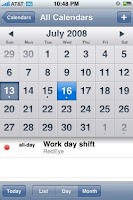
CALENDAR ISSUE:

1. update your ITUNES to 7.7 version
2. connect your iphone to computer
3. From iTUNE click on iphone and on general settings and update to new version 2.0
4. downloading about 120mgb, and after downloading complete, updating including backing your existing files will start.
5. the processess might take longer depending on your connection.
6. after update is complete, you will see Exchanger server option with screen to fill the following information:
7. type your email address
8. on the next menu type user name as shown here wkumsa
9. then your password *********
10.click on next
11. on the next screen you will be asked for server name
12. type mintzmail.mintz.com
13. click on Next to connect
14. you will see additional screen with option to sync email, contact, and calendar. if you want to keep the existing calendar and contacts do not sync and turn the option OFF
15. Next the sync process will start and will be prompted to enter a password(numerical screen)
16. For password you can enter or choose 4 or more and complete the setup.
17. in a few munites your email will be displayed
FEW THINGS YOU SHOULD KNOW:
----------------------------
.Email - you can not delete more than one email.
.Copy/Paste - you can not copy and paste e-mail contents as you normally do on blackberry.
---------------------------------------------------------
INTERNATIONAL ROAMING:
Here is a Link from AT&T: http://www.wireless.att.com/learn/international/roaming/international-roaming.jsp
===============================================================
CALENDAR ISSUE:


If you are having problem editing or updating previously created calendar on your iphone, make sure the following information on your iphone email settings matches on AD(Active Directory).
1. From Settings choose Mail, Contacts, Calendars
2. Open Your Exchange Email account
3. Open Account Info
4. Change your Email Address letters should reflect the Active Directory in Exchange Server
5. Do not change the server name.
6. Change Username: UserName should reflect the active directory(userName is what needs to be changed)
7. If none of the above update works, Delete your account and start all over.
8. Finally re-start your iphone.
9. If all settings are done properly, editing menu will show up on your iphone.
1. From Settings choose Mail, Contacts, Calendars
2. Open Your Exchange Email account
3. Open Account Info
4. Change your Email Address letters should reflect the Active Directory in Exchange Server
5. Do not change the server name.
6. Change Username: UserName should reflect the active directory(userName is what needs to be changed)
7. If none of the above update works, Delete your account and start all over.
8. Finally re-start your iphone.
9. If all settings are done properly, editing menu will show up on your iphone.


-------------------------------------------------------------------------------------
BATTERY - ISSUE? This is a known issue. Here are few things you can do.
iPHONE e-mail by default set to PUSH to receive email continuously from Exchange server. Unfortunately this will drain iphone battery.
1. From Main Screen Choose Settings.
2. Select Fetch New Data
3. Turn OFF the push
4. Scroll down to FETCH
5. Choose any of the followings:
a. Every 15 Minutes - you will receive emails from the server every 15 minutes
b. Every 30 Minutes
c. Hourly
d. Manually
If you rely on your device to receive an important email on time, all the above selection can cause a delay.

 More Information From Apple Saving your battery issues:
Backup Battery for iPHONE and iPOD
How to set the iPhone such that when I delete an e-mail on the device, it also deletes it from my inbox on my computer?
 After you delete emails on your computer updating or refreshing your iPHONE will reflect the change you made.
MORE iPHONE USEFUL TRICKS
____________________________________________________________________________________________________________________ MORE iPHONE EMAIL SETTINGS
_________________________________________________________________
OTHER iPHONE TIPS:
How to set the iPhone such that when I delete an e-mail on the device, it also deletes it from my inbox on my computer?
After you delete emails on your computer updating or refreshing your iPHONE will reflect the change you made.MORE iPHONE USEFUL TRICKS
____________________________________________________________________________________________________________________ MORE iPHONE EMAIL SETTINGS
_________________________________________________________________
OTHER iPHONE TIPS:
Every time you update iphone firmware you will need to shutdown and restart your iphone.


How to setup Voice Mail
First dail your own number from your iPHONE
- When you are connected you will hear a message to key In you access code, and follow the instructon. You will get a notification telling you that your voice mail has been setup.
- Wait for update from AT&T system.
- Press the iPHONE voicemail button to enter your passcode.
- Your Voice mail is now active, and to test call your device from another phone and leave a message.
- Press the iPHONE voice mail button to retrieve the test message
iPHONE User Guide is also available on your device.
From your iphone home screen
Choose Safari
Choose BookMark
Choose iPhone User Guide
Choose any one of those icons to learn how to use.
_____________________________________________________
To go to the top of an email quickly in iPhone Mail:
Tap in the iPhone status bar (which contains the clock, signal and battery indicators, for example).
The same works for scrolling to the top of a folder's message list, too.
______________________________________________________
Subscribe to:
Posts (Atom)