
Thursday, July 12, 2018


Wednesday, May 16, 2018


Wednesday, March 07, 2018
2018 - Recived More Donation from Mintz Levin.
Hi Wube,
We have another batch of desktops and want to know if you are interested in them. Please let me know in the next couple of days if you would like them or not.
143 - HP 6300

2 – HP 6000
Friday, June 02, 2017


Thursday, March 16, 2017
How To Fix Codero Subscreption issue
- Hello,
The instructions are in the post itself that I provided above, however I will retype them below so hopefully they make a little more sense.
1) Log into your Plesk control panel as root or admin.
2) On the left hand side column, click on "Subscriptions".
3) Find a domain name in the list that you are needing to fix and click on the domain name itself (do not click on "Manage in customer Panel". Click on the domain name itself, under the "Subscription" column).
4) Once the next page loads, you should see a column on the far right hand side. The top options in that column will be "Backup Manager", then "Databases", then "Scheduled Tasks", then "Wordrpess". Underneath that is a box labeled "Hosting", and then underneath that is a box labeled "Account". The "Account" box is the box we are looking for.
5) In the "Account" box click on "Customize".
6) At the bottom of the page there will be an "Expiration Date". You would want to either change the date to a date in the future, OR if you do not want the domain to suspend like it is now due to the expiration date then you can click "Unlimited" next to it.
7) After you change the date or click "Unlimited" then you would click "Apply" at the bottom of the page.
8) Next click on "Subscriptions" on the left hand side again.
9) Find the name of the subscription you just changed and click the check box next to it.
10) At the top of the page under the "Subscription" title, there should be some buttons, click on "Change Status".
11) Click "Activate" from the drop down menu. This should reactivate the domain.
Best Regards,
Keri Sartain
Codero Customer Care
Saturday, February 18, 2017


Wednesday, November 30, 2016

Friday, August 19, 2016
WINDOWS SERVER 12 VS. UBUNTU SERVER 16.04
UBUNTU SERVER ON FIRST INSTALLATION FROM THE CD COMES WITHOUT ANY USER INTERFACE LIKE WINDOWS. SO IF YOU ARE GOOD AND HAVE AN ABILTY TO USE A COMMAND LINE FOR EVERY LITTLE THINGS IT IS OKAY. IN MYCASE WHY SHOULD I WHEN I HAVE AN OPTIONS TO USE USER INTERFACE(GUI) JUST LIKE WINDOWS SERVER. SO AFTER YOU INSTALLED UBUNTU SERVER YOU CAN DOWN LOAD UBUNTU DESKTOP TO ADD BASIC APPLICATION AND BE ABLE TO SEE A USER INTERFACE, LOOKS LIKE YOUR OTHER UBUNTU DESKTOP.
First download and run update:
sudo apt-get update
sudo apt-get install ubuntu-desktop
You can also install WEBMIN.
sudo nano /etc/apt/sources.list.d/webmin.list
Save the file using CTRL & x
To add use the command line
sudo apt-key add Cameron-key.asc.
Then update using the command line
sudo apt-get update

UBUNTU SERVER 16.04 - by default no GUI.

Updating with UBUNTU DESKTOP will give you few user interface menu.
WINDOWS SERVER 12 - comes loaded with all recommended operating system.


All the above can be downloaded for free. Windows server 2012 free for 180 days to teach your self .
First download and run update:
sudo apt-get update
sudo apt-get install ubuntu-desktop
You can also install WEBMIN.
sudo nano /etc/apt/sources.list.d/webmin.list
Save the file using CTRL & x
To add use the command line
sudo apt-key add Cameron-key.asc.
Then update using the command line
sudo apt-get update

UBUNTU SERVER 16.04 - by default no GUI.

Updating with UBUNTU DESKTOP will give you few user interface menu.
WINDOWS SERVER 12 - comes loaded with all recommended operating system.


All the above can be downloaded for free. Windows server 2012 free for 180 days to teach your self .
Wednesday, May 25, 2016

Wednesday, May 04, 2016
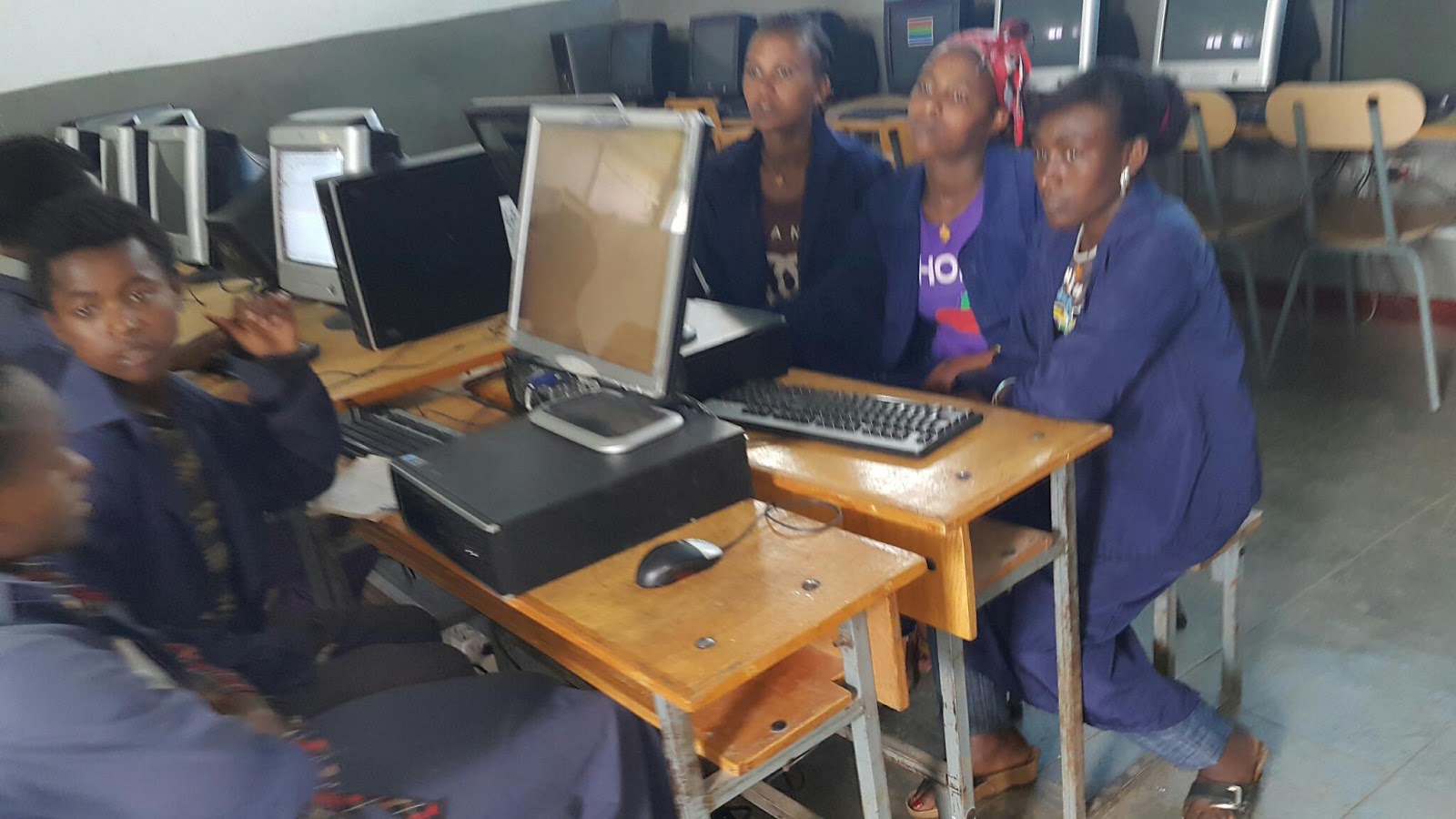
2016 Donated Computers
2016 - Donated computers reached country side school called GONDE. To reach there, we drove through beautiful sceneries in ARSI ZONE - OROMIA Region.



Wednesday, April 27, 2016


Monday, April 11, 2016
Thursday, December 24, 2015
2016 - Computer Related Donations will continue....
We did more good things in 2015 and hoping to do more in 2016 and having fun as well...

Monday, November 30, 2015


Wednesday, November 25, 2015

Tuesday, November 17, 2015

Sunday, August 23, 2015


Friday, July 17, 2015
Subscribe to:
Posts (Atom)